 Framework 13 – the laptop I should have bought all along
This post was published on 25 Apr 2026
22 min read, 5012 words
Framework 13 – the laptop I should have bought all along
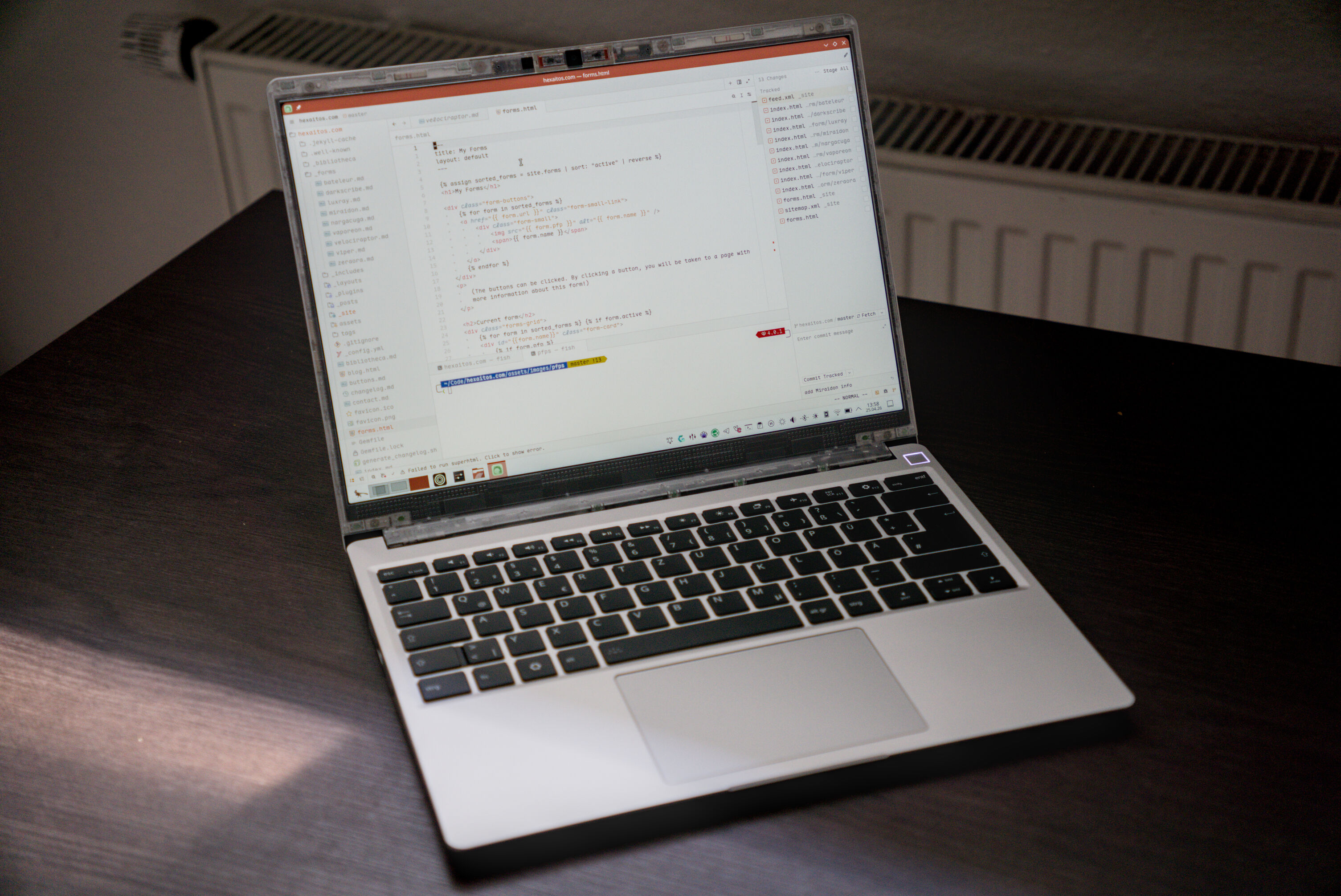
I have finally pulled the trigger on the laptop that I probably should have just bought from the beginning, the Framework 13 (with an AMD Ryzen 5 7640U in my case). My Framework journey began about one year ago: I was one of the first people to buy and receive the Framework 12 laptop and had generally been rather happy with it – and I still am! Unfortunately, I may have somewhat overestimated the capabilities of the i3-1315U processor that came with mine and have, therefore, had a few performance-related issues that have been somewhat annoying. It is still a great machine and I had been using it as my main machine this entire time, but its shortcomings become a bit more apparent as time went on.
What finally made me decide to go and buy a Framework 13 was when I was playing the “Re:Mobilize” Quake mod and had a few maps run at around 80-100 fps max (often lower) no matter the screen resolution because of a CPU bottleneck. That said, it is still a great machine and one that I had simply been using for something that it was not quite intended for. Thus, I decided it was time I just go out and buy their Framework 13 and give the Framework 12 to my partner Aely so that he can tinker around with Linux a bit more, something he has been wanting to do for a while.
I ended up buying the 7640U version of the Framework 13 mostly since the i3-1315U was almost enough for me, but not quite and, thus, I thought that the 7640U would be more than plenty for me. Additionally, I went ahead and bought the upgraded screen – 2.8K 120 Hz matte screen – along with it. I already had 16 GB of RAM (albeit a single stick) at home from my Framework 12 (I had replaced the 16 GB of memory that I initially got with it with a 48 GB stick). I also already had plenty of spare USB-C modules to use, so I did not have to buy any either. I went with the clear bezel.
One thing I wanted to positively remark right off the bat is the following: shortly after buying the Framework 13 (about two weeks after I had received mine), Framework not only announced their Framework 13 Pro (which would have been outside of my budget anyway), but they decreased the price of the exact laptop I had already bought by roughly 10%. As I was still well within their 30-day return policy, I sent them an email politely asking them to refund me the difference in price; and without any back and forth or discussion, they got back to me within a few hours and said that they had initiated a partial refund to match the current pricing of the Framework 13. I was very happy to see how uncomplicated this all was, I simply got an email back that said:
Thank you for your inquiry regarding recent pricing change. As you purchased within 30 days of the pricing change, we can offer a partial refund to match current pricing of the Framework Laptop you ordered. We have processed this partial refund to the payment method used for the order, please note that depending on the payment provider this can take 5-10 business days to appear on your statement or account.
I also want to positively remark that the Framework 13 Pro seems to be (almost) entirely compatible with the Framework 13 – so if you have the Framework 13 and wish to upgrade to the pro in the future, you could theoretically just keep your current chassis and put the new board into it also! Or if you like the chassis of the 13 Pro, you can put your current mainboard into that also.
Putting the machine together
Putting the laptop together was a little bit trickier than it was with the Framework 12 for a few reasons. Firstly, the keyboard needs to be attached to the mainboard with a cable whereas the keyboard of the Framework 12 uses pogo pins for a cable-less installation which I personally much prefer, that said, installing the keyboard was a fairly simple ordeal and the cable is easily installed into its respective connector.
The bezel was probably the most complex part of the entire installation as it did not really want to do what I wanted it to do (namely snap into place). I had to gently move some of the cables underneath the screen aside so that the bezel would properly fit. This was not too much of a problem nor was it time consuming, but it made the entire installation a bit more complicated than it was with the Framework 12.
Last but not least, the AMD model is very picky about where you place which USB-C module as some modules (especially HDMI) do not work everywhere and others – if placed in the “wrong” location – may use more power. My current configuration, thus, looks as follows:
┌────────────────────────────┐
│  [USB-C]        [USB-C]    │
│  [USB-A]        [ SD ]     │
└────────────────────────────┘
This configuration (with the two USB-C at the top) also makes it so that both my USB-C ports are Thunderbolt; this is great for my USB-C dock so that I can have both of my external monitors connected to the dock and all I need to connect to my Framework 13 is one USB-C cable.
All in all, despite a few problems especially with the bezel, putting together the Framework 13 took maybe less than 15 minutes for me and it was all relatively easy! Nevertheless, I still feel as though the bezel situation could be somewhat improved still as it was a bit daunting having to push aside the cables to make the bezel actually snap into place – I was very worried I was about to break something.
Installing CachyOS and RAM woes
Right from the beginning, I knew I wanted to run CachyOS and so I had already prepared a USB thumb drive that I put the CachyOS ISO on to using dd on my Framework 12. To my admittedly rather big surprise, I was unable to boot off of the drive and so I went ahead and re-flashed it using Rufus on Windows; that, however, also did not solve the issue. As it turns out, the BIOS has Secure Boot enabled by default and CachyOS will not boot with Secure Boot enabled. So a quick delve into the BIOS later and I was able to boot into CachyOS – for a few minutes at any rate.
At this point in time, I had already installed both the 48 GB DDR5 5200 MT/s RAM stick as well as the 16 GB DDR5 5600 MT/s RAM stick into the machine and the BIOS itself also recognised both of them and said that I had 64 GB of usable system memory running at 5200 MT/s – so that all looked completely fine to me at first glance. However, as it turns out, the 7640U does not like this configuration at all; in fact, it does not like the 48 GB RAM stick I have in the slightest. I tried various configurations and using it on its own, but whenever I used this stick at all, the computer would run only for a brief moment before shutting off and rebooting. The same stick of memory runs fine in the i3-1315U Framework 12. I am not entirely sure why this particular stick does not work in with the 7640U, but I assume it may be because of the non-binary (  ) RAM (48 GB rather than something like 32 GB or 64 GB). It may also be the fact that it runs at 5200 MT/s, I could not find any information about how well the 7640U handles speeds below 5600 MT/s.
However, after figuring out what the problem was and running the machine in single channel with just the 16 GB stick of RAM solved these issues and I was able to successfully install CachyOS on my machine. I am using a Lexar EQ790 1 TB SSD that has been working great and is performant enough for my purposes. I also ended up using plain old ext4 as I have read numerous reports on Mastodon of folk who have had trouble with btrfs. I did encrypt my drive with LUKS, however.
The Framework 13 as my main machine
I did figure that the jump from a i3-1315U to a 7640U would be noticeable, but I did not expect it to be quite that noticeable. This is finally a machine that I can just use how I want it to and that just runs everything I want to run at great speeds without getting too hot or loud. The keyboard is great, the screen is really nice, the speakers are surprisingly decent. I will go into each of those topics a bit more in-depth in this section!
Fan noise
Right off the bat, I noticed that this laptop finally does not scream at me anymore. A problem I have had with the Framework 12 ever since I got it was that it simply got very loud rather quickly, even during less intense workloads. As mentioned in my review of the Framework 12:
When it comes to fan noise, warmth and performance, I am a bit unsure what to think, and I do not really have any other newer laptop to compare to other than my MacBooks – and that is, once again, just a very unfair comparison. When using the laptop on its own without my external monitor connected, it runs pretty quietly even if the fans do run at around 40% speed most of the time, even when using the laptop in the “Power Save” power profile in KDE. The bottom gets pretty warm and can definitely get close to being uncomfortable when using a higher performance profile and running some more intensive applications. Luckily, the fan noise is not annoying, and even at 100% speed, they are never too distracting.
When it comes to the Framework 13, fan noise has been absolutely no problem at all I rarely ever actually hear the fans, even when connected to an external monitor. The bottom of this device can also get a bit warmer from time to time, but it is nowhere near as bad as the Framework 12. When using this device in power saving mode, it often does not even spin up its fans at all and when using it in the “Balanced” mode and connected to my two external monitors (4K 120 Hz and 1080p 60 Hz), it turns on its fans but typically hovers between 2500 RPM and 4000 RPM. This may sound high, but the fans are so good that even at those speeds, they are barely audible. Even playing Quake, the fans stay completely quiet and the device stays relatively cool - the i3-1315U would ramp up its fans to the fullest when playing Quake and – despite what I said in my review – it does actually get somewhat annoying after a while.
Screen
The screen is fantastic, this is the best screen I have ever had on a non-Apple laptop. This speaks more about what types of other laptops I have used so far than Framework’s screen quality though, I would say. All other non-Apple laptops I have used thus far have been older ThinkPads, so I am very much used to rather quite terrible screens. I don’t really know much about the response times or colour accuracy of this particular display and while it is not as good as the display on my M4 MacBook Pro, it is a fantastic display that I can run at around 200% scaling, meaning that I do not need to have fractional scaling!
Additionally, the matte screen surface makes using this laptop in lighter areas (which is what I typically tend to do) so much more comfortable than my MacBook. I am able to keep the brightness at around 50-60% even with lots of sunlight whereas the MacBook Pro would often need to crank up its brightness all the way for me to still be able to see things well. The fact that it has VRR and also an ambient light sensor so that it can adjust its brightness according to your surroundings just adds to it – and both of these worked on KDE Plasma 6 right out of the box without any special setup! Additionally, it is a delight finally having a Linux laptop with a screen that does 120 Hz and, last but not least, having an aspect ratio of 3:2 is absolutely fantastic. It reminds me of my 4:3 T60 that I used to have that I loved precisely because of its aspect ratio; 16:9 or even 16:10 on a laptop is not good for my neck.
I would perhaps recommend using an ICC profile to improve the colour accuracy of the built-in screen a bit. You can find various different ICC profiles on the Arch Wiki for the particular screen that you have in your machine.
Speakers
To be quite frank, I expect the speakers to be essentially useless for me like they had been on the Framework 12. The speakers on the Framework 12 are only really usable for things like a YouTube video and even then, it was not a good experience at all. I was, therefore, very surprised when the speakers on the Framework 13 were – dare I say – actually decent? They are still a far cry from the quality of the speakers on my MacBook Pro, but they are good enough that I actually do not mind using them at all. Highs can still sound a bit off and not great, but even listening to music on them is mostly fine!
Touchpad and keyboard
This is where I was, once again, pleasantly surprised. The keyboard I think is one of the best keyboards I have used on a laptop in quite a while and it reminds me a bit of the classic ThinkPad keyboards (dare I say I actually prefer the keyboard in this one?). It has a lot of travel (similar to the Framework 12) and is just a joy to type on and it did not take me any time at all to get used to it. Especially compared to the super flat keys on the MacBook Pro I have, the keyboard on the Framework 13 feels much more substantial – in a good way!
The touchpad also was a very pleasant surprise! Once more, it is no MacBook but it comes pretty darn close for me and is way better than the (unfortunately misaligned) touchpad on the Framework 12 I have. I was delighted to notice and feel that it actually has a matte, glass surface that feels very nice to use and move across and doesn’t get fingerprints stuck to it much at all!
Unlike the Framework 12, the power button of the Framework 13 is located “inside”; that is, it is located on top of the keyboard at the top right corner. This, to me, is actually a downside, as this means that I am unable to see whether the computer is currently on or suspended. Granted my MacBook also does not have this, but I always appreciate a visual indicator of my laptop’s status. Some folk might find this to be an advantage, but especially on Linux where I can never quite know for certain if my laptop actually suspended properly, I would like an indicator so I can easily see if it is still running and turn it off properly before it runs out of battery.
Battery life
There are some ways you can try to squeeze more battery life out of your machine (see the section below for more information), but the reality is, unfortunately, that the battery still is not great, especially when compared to other laptops (and even more so when compared to newer ARM MacBooks). I have the model with the 61 Wh battery and I get 6-8 hours of battery life max. When I am actually using the machine, have some YouTube running and switch between tasks frequently, my average power consumption (with the screen at 120 Hz and 55% brightness) is around 12-13 W using KDE Plasma’s “Powersave” profile. I’ll let you do the maths on that one (hint: it’s not 6 hours~). I had already expected this and battery life is still just about good enough for me, but it certainly is a far cry from other laptops. Idle power consumption is about 6-8 W at the same brightness level (these measurements were all gathered using powerstat).
Some optimisations and tweaks
If you are comfortable messing around in the terminal a bit and want to tweak and optimise your laptop a bit, this section might be of interest to you! After having successfully installed CachyOS and gotten my laptop up and running how I wanted it to, I looked into a few things that I could try to improve to make the experience a bit more pleasant. This includes things such as performance or battery improvements, the fingerprint reader and some keyboard backlight settings. This section details some of these tweaks I applied.
Automatic keyboard backlight
Browsing the Framework community forum, I stumbled across a post announcing a nifty little program called keylightc. What this does is essentially the same thing that my MacBook also does: it automatically turns the keyboard backlight off when no key on the internal keyboard has been pressed in X seconds or if the internal trackpad has not been used in X seconds.
Installation on CachyOS is fairly simple, you can download the program from the AUR by typing paru -S keylightc and then enabling the service by running sudo systemctl enable --now keylightc.service. I found that for me personally, the defaults work very well.
Fingerprint authentication
I wanted to use my fingerprint not only for logging in but also for other prompts that would usually require a password, such as system prompts or even things like using sudo. The first thing I had to do in order to achieve that was install fprintd which can be installed from the regular CachyOS repositories. Afterwards, I headed into KDE Plasma 6’s user settings and enrolled my fingerprint for my user. Once that was done, I was able to actually log in to my system (though it still does require me to enter the password every now and then and also requires me to enter it the first time I log in. But I can use the fingerprint after closing the laptop and opening it back up again).
In order for sudo and system prompts to also accept my fingerprint, I was required to edit the /etc/pam.d/system-auth file. Here, I had to add the following line: auth [success=3 default=ignore] pam_fprintd.so. Now, whenever my terminal requires me to authenticate, it will ask for my fingerprint first; if my laptop is connected to an external screen, pressing CTRL-C will abort the fingerprint prompt and ask me for my password instead.
#%PAM-1.0
auth       required                    pam_faillock.so      preauth
auth       [success=3 default=ignore]  pam_fprintd.so
-auth      [success=2 default=ignore]  pam_systemd_home.so
auth       [success=1 default=bad]     pam_unix.so          try_first_pass nullok
auth       [default=die]               pam_faillock.so      authfail
auth       optional                    pam_permit.so
Better battery life
The CachyOS wiki (which, by the way, is surprisingly well-written and beginner friendly) mentioned that enabling what is known as “RCU Lazy” might help reduce power consumption in certain workloads. I have found that it does, indeed, decrease power consumption when on battery by a few watts and netted me about an extra hour of battery life! Enabling this requires setting the Kernel cmdline parameter rcutree.enable_rcu_lazy=1. How exactly this is accomplished depends on your bootloader. I went with Limine and enabled it by editing /boot/limine.conf and adding the above-mentioned parameter to the cmdline lines for each kernel.
WiFi improvements
The WiFi chip that comes with this machine, the Mediatek MT7922, is, unfortunately, not the greatest (especially on Linux) out of the box. Without any adjustments at all, it had terrible latency and often would connect to 2.4 GHz despite there being a 5 GHz network with better speeds and connection quality (I have a dual-band router that broadcasts both frequencies on the same SSID). Fortunately, it’s been working great after a handful of tweaks you can find on the Arch Wiki!
Firstly, replacing wpa_supplicant with iwd has been very helpful. To do this, you first have to download it from the CachyOS repositories. Afterwards, you need to edit your NetworkManager configuration so that it uses iwd as its backend. While you’re in there, it is also helpful to disable powersaving at the same time as this is the cause of a lot of the latency-related problems I had been noticing. Paste the following into your /etc/NetworkManager/NetworkManager.conf:
[device]
wifi.backend=iwd
[connection]
wifi.powersave=2
Afterwards, you need to enable and start the iwd and you also need to disable and mask the wpa_supplicant service. You can do this using the following commands:
$ sudo systemctl enable --now iwd
$ sudo systemctl stop wpa_supplicant
$ sudo systemctl mask wpa_supplicant
Once you have done that, you need to restart NetworkManager (sudo systemctl restart NetworkManager) and you should now be running on iwd with powersaving disabled. This has helped my latency and speed problems immensely and SSHing into my servers is now actually possible without it lagging terribly.
Frequency bug
I found that, from time to time, the processor would get stuck at its nominal frequency of 3.5 GHz and not enable its boost clock speeds of up to 5 GHz, even in the “Balanced” or “Performance” modes. Running cpupower frequency-info would yield the following result:
cpupower output
analyzing CPU 11:
  driver: amd-pstate-epp
  CPUs which run at the same hardware frequency: 11
  CPUs which need to have their frequency coordinated by software: 11
  energy performance preference: performance
  hardware limits: 406 MHz - 4.97 GHz
  available cpufreq governors: performance powersave
  current policy: frequency should be within 1.12 GHz and 3.50 GHz.
                  The governor "performance" may decide which speed to use
                  within this range.
  current CPU frequency: Unable to call hardware
  current CPU frequency: 3.47 GHz (asserted by call to kernel)
  boost state support:
    Supported: yes
    Active: yes
  amd-pstate limits:
    Highest Performance: 196. Maximum Frequency: 4.97 GHz.
    Nominal Performance: 138. Nominal Frequency: 3.50 GHz.
    Lowest Non-linear Performance: 44. Lowest Non-linear Frequency: 1.12 GHz.
    Lowest Performance: 16. Lowest Frequency: 400 MHz.
    Preferred Core Support: 1. Preferred Core Ranking: 220.
As you can see, the system recognises the fact that it can boost up to 4.97 GHz and says that boost states are both supported and active, yet the current policy is that the frequency should be between 1.12 GHz and 3.50 GHz. This appears to be a kernel bug that was supposedly fixed but appears to be present (again / still) in 7.0.1-1-cachyos at the time of writing this. The only fix so far I have found is to either reboot or to re-initialise CPPC by running the following commands:
echo passive | sudo tee /sys/devices/system/cpu/amd_pstate/status
echo active | sudo tee /sys/devices/system/cpu/amd_pstate/status
It is also important to note that this is not a Framework-related bug but a bug with this particular (generation?) of CPUs.
framework_tool and framework-tool-tui
After some browsing around, I stumbled across framework_tool and its community made TUI version, framework-tool-tui. These are very helpful for accessing or changing various aspects of the laptop! I mainly use it to set a charge limit so that I wear down the battery less when the computer is plugged in to power most of the time. To set the charge limit (and have it applied immediately), you can run sudo framework_tool --charge-limit 80 (this will set a charge limit of 80%) or you can use the above-mentioned TUI tool to set it via the TUI, instead!
Conclusion and comparison to the Framework 12
All in all, I am actually super happy with this laptop and mostly just a bit annoyed that I did not buy this one right away and, instead, opted to buy the Framework 12 first which I thought would be good enough for my purposes. Nevertheless, I was able to use the Framework 12 as my main machine for quite a while and coded the majority of Theriodex on it, so it is not as though it is a completely incapable machine. However, I found myself often still deciding to use my MacBook Pro (especially when I was out and about) for a few reasons – most of which the Framework 13 solves.
One major downside that I did not quite consider is that the screen on the Framework 12 truly is tiny, so much so that it was actually rather difficult to properly work on it for longer periods of time due to some neck strain. Additionally, the screen – while serviceable – was definitely not nearly as nice as the screen on my MacBook; and I am just so used to higher refresh rates nowadays that just using a 60 Hz monitor made the laptop feel super slow. The powersaving mode on the Framework 12 also made the machine pretty slow in general and using it while out and about could be quite annoying at times because of that – and switching to balanced would make it heat up much faster and make the battery drain even faster.
None of these things really are a problem anymore with my Framework 13, aside from the fact that its battery life also is not great. Despite that, however, I have not had to use my MacBook since I have received the Framework aside from a few graphics-related tasks – whilst I had to use my MacBook all the time even after I got the Framework 12.
Thus, I can definitely say that I have been very happy with it thus far. I personally have not had any issues regarding its build quality at all, though I definitely have seen folk complain about its build quality apparently being sub-par; neither Aely nor I can really agree with that, however, and we find that the laptop feels sturdy and well put together – but of course not as high-quality as a MacBook.
The big question of course remains: can I recommend it? That very much depends on your use case and I feel as though a blanket “Yes! This machine is great and I can absolutely recommend it” would be the false conclusion. I like Framework for the simple fact that I enjoy their mission of wanting to create more repairable laptops / machines. Laptops especially have always played an important part in my life for various reasons and I would never be (and still never am) seen going anywhere without my laptop and I have used laptops as my main machine for quite a long time.
Even back in school I would take my chonky T500 with me to code various things or I would take my laptop with me to family gatherings – and when they inevitably broke at some point (one of them broke because I spilt coke on it), it was a very difficult thing for me since it was – to me – as though I had just lost a very important companion. And it is a shame to me that laptops especially seem to be machines that are so difficult to upgrade and replace their parts of. I very much enjoy this aspect of Framework’s devices: you can buy what you need now and if you wish to upgrade it down the line or need to replace something that broke, you just can.
Someone who simply wants to have a laptop that works and does not care too much about such aspects and Framework’s mission and does not get too attached to their machines (unlike me who very much does have trouble selling old machines because I just grow quite attached to them)? I don’t think I could recommend this laptop to these people. Especially with current RAM pricing, Apple’s MacBook Air (which now has 16 GB of RAM in its base configuration and 256 GB of storage) is a great device that you can frequently get for under €900 in Germany. You get a better screen, better build quality, better performance, much better battery life and even their even cheaper MacBook Neo is very compelling. If you just need a laptop that just works that you need to last an entire day that you can trust will work and that will be your only machine – I think a MacBook would be the better choice.
That said, if you want Linux or Windows and you want to actually completely own your machine fully and be able to repair it yourself if something breaks and be able to open it up and tinker with it – then I think this machine would be a great choice for you. Let’s face it, a lot of people do not want that, they want to just use their machine, they don’t want to tinker, they don’t care about it being repairable. And that is also fine.